Introducing WhatsApp Calling in Periskope 🚀

WhatsApp calling is now available in Periskope.
Make and receive calls from your connected WhatsApp numbers, bring teammates into live customer conversations, and get recordings, transcripts, and AI summaries after every call.
All from the same console your team already uses to manage customer conversations.
📞 Make and receive calls from Periskope
Call customers from your connected WhatsApp numbers and handle incoming calls right from Periskope.
To make a call:
Open a 1:1 chat and select the voice call option, start a call from a previous entry in your call log, or click New call on the Calls page. Choose the number you want to call from, then search for a contact or enter a phone number.

To handle incoming calls:
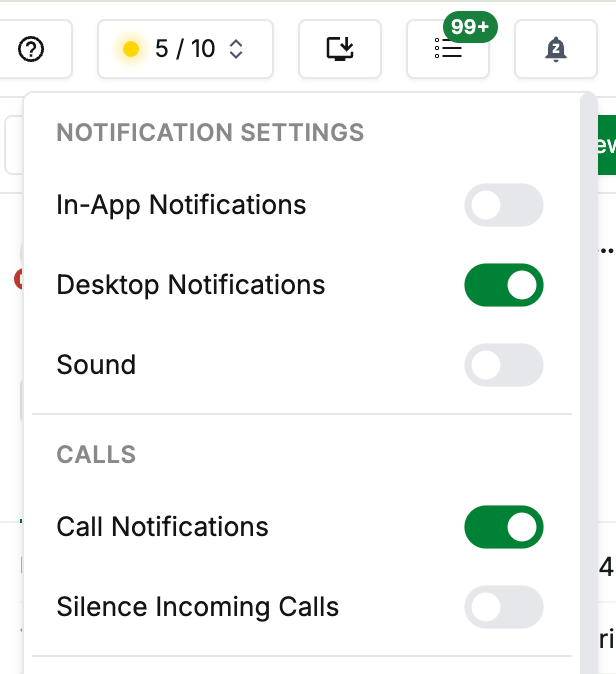
Incoming calls pop up for teammates who have access to the relevant number. The ringtone is off by default, but you can turn it on in your call notification settings.
The first teammate to answer takes the call.
If someone answers elsewhere, declines, or misses the call, other teammates can see what happened.
Need another teammate's help? They can join a live call, and the customer can hear everyone on the call.
🎧 Review recordings, transcripts and AI summaries
Your team can revisit calls made or answered in Periskope to check what a customer said, what was agreed, and what needs to happen next.
To review a call:
Open Calls, select a call, and play its recording or open the transcript tab.

Each line in the transcript is attributed to the customer or teammate who spoke. Transcripts also support conversations that switch between languages.
The AI summary captures what the customer wanted and what was agreed, making it easier to catch up on a conversation without listening to the entire recording.
📋 Find your team's call history in one place
See calls made or answered in Periskope, calls answered on the phone, and missed calls in one place.
In the Call section, filter by status, assignee, or label. You can also export your call log to CSV for reporting and analysis.
📝 Manage follow-ups from call details
Turn a call into a follow-up without losing track of the conversation.
To manage a call: Open Calls and select a call to view its details. From there, you can:
Assign the conversation to a teammate.
Add labels to the conversation so it’s easy to find later.
Create a ticket directly from the call.
You can also create tickets and add labels for contacts who have called you but don’t have an existing chat history.
🔔 Choose which calls notify you
Decide which connected WhatsApp numbers can notify you, and control how incoming calls alert you.
To configure call notifications:
Go to Settings → Notifications → Calls to choose which numbers notify you and turn call pop-ups or the ringtone on or off. You can also access these settings from the notification bell in the top bar.
WhatsApp calling in Periskope is currently experimental and supports voice calls only.
For a closer look at everything you can do, check out the full calling guide.